
Live Scripting - Pt2 - Extending the API#
Extending the REST API#
Welcome to the second installment of our series on custom scripting using the Xsolla Backend Live Scripting System. In part one, we covered the Xsolla Backend Script Manager and how to create a workspace, sync scripts, and work i Visual Studio Code.
In this article, we will focus on extending the platform REST API by creating entirely new endpoints that titles can access to enable custom behavior, new data storage access, and more.
Postman Collection#
For convenience, the Postman collection used in this article is available here: Live Scripting Postman Collection.
To configure for your custom cluster, duplicate the Demo environment and update the base_url, auth_username,
and auth_password variables to match your Xsolla Backend cluster, and then make sure you set your
environment active.
Scripts and Samples#
Completed scripts for this article:
xbe-scripts-pt2.zip
Getting Started#
The Xsolla Backend is built upon the open-source project ComposerJS, a framework designed for creating RESTful API services using Node.js. ComposerJS emphasizes rapid development with minimal setup and configuration. Xsolla Backend takes this a step further by allowing you to pull source code from a database, alongside local disk scanning, to extend platform functionality seamlessly without needing to fork or deploy a microservice project.
There are four primary types of scripts in Xsolla Backend:
Route Handlers
Data Models
Background Jobs
Event Handlers
In this article, we will focus on Route Handlers, which are classes decorated with @Route that process
HTTP requests.
Step 1: Creating a Simple Route Handler#
Let’s start by creating a simple route handler that responds to the HTTP request GET /hello:
Open the workspace you created in Part One.
Create a
routesfolder in your workspace and add a new file calledHelloRoute.ts.Add the following code to define the class structure:
import { RouteDecorators } from "@composer-js/service-core";
const { Route } = RouteDecorators;

@Route("/hello")
export default class HelloRoute {
}
Adding a GET Handler#
Next, we need to define a handler function to process GET requests:
Modify
HelloRoute.tsby adding a function decorated with@Get:
import { RouteDecorators } from "@composer-js/service-core";
const { Get, Route } = RouteDecorators;

@Route("/hello")
export default class HelloRoute {
    @Get("/world")
    getHelloWorld(): string {
        return "Hello world!";
    }
}
Save the file, commit it to the server, and then publish the script to activate the new endpoint. Wait for the server to restart.
Open and run the Get Hello World route. You should see the response: “Hello world!”.
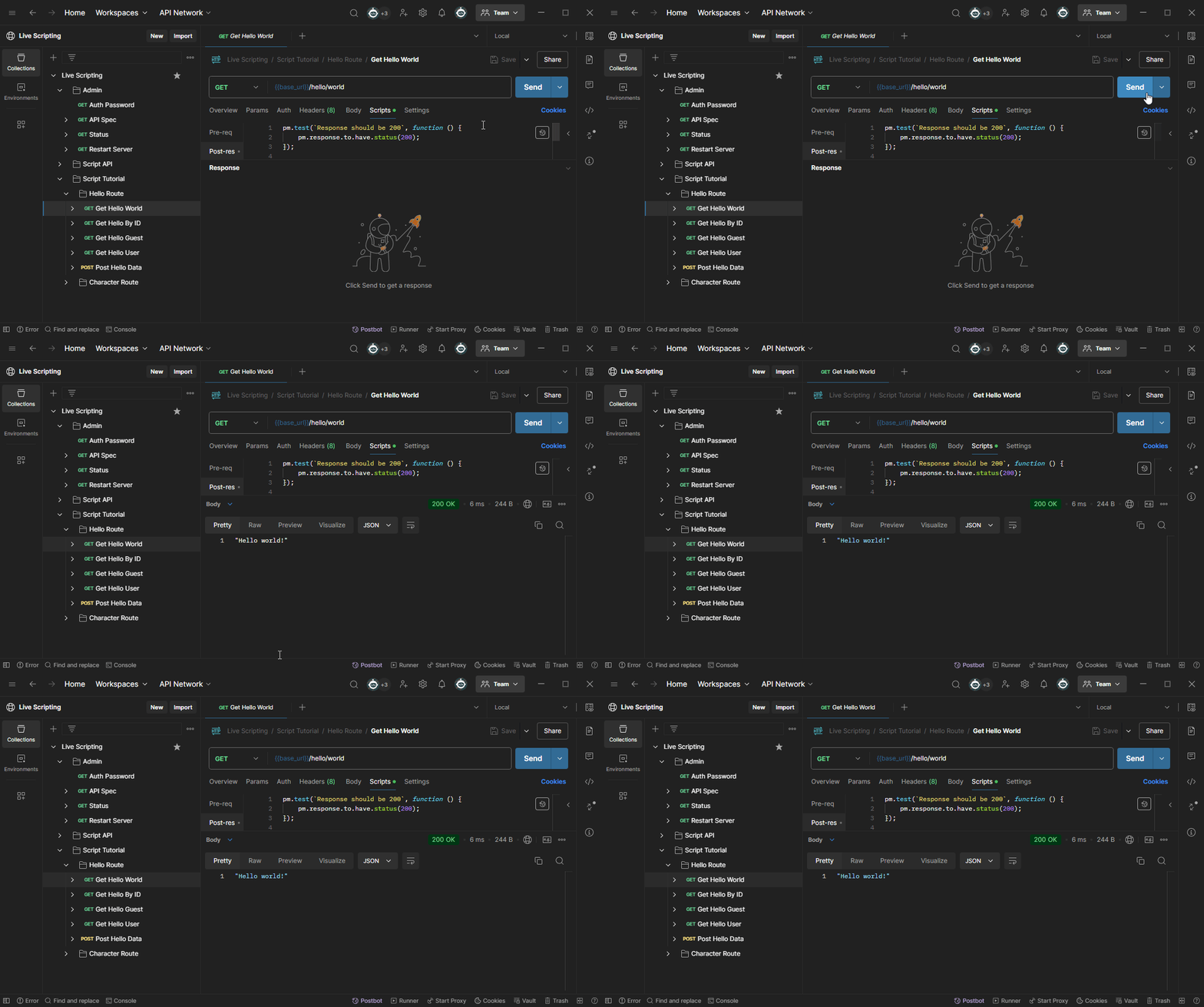
Congratulations! You’ve just created your first new REST API endpoint in Xsolla Backend.
Step 2: Adding Parameters to Your Route#
Now, let’s extend the functionality by creating a dynamic greeting based on a URL parameter. For example,
the URL GET /hello/sam will return “Hello Sam!”:
Modify
HelloRoute.tsas follows:
import { RouteDecorators } from "@composer-js/service-core";
const { Get, Param, Route } = RouteDecorators;

@Route("/hello")
export default class HelloRoute {
    @Get("/:id")
    getHelloWorld(@Param("id") id: string): string {
        return `Hello ${id}!`;
    }
}
Save, commit, and publish the script again, and wait for the server to restart.
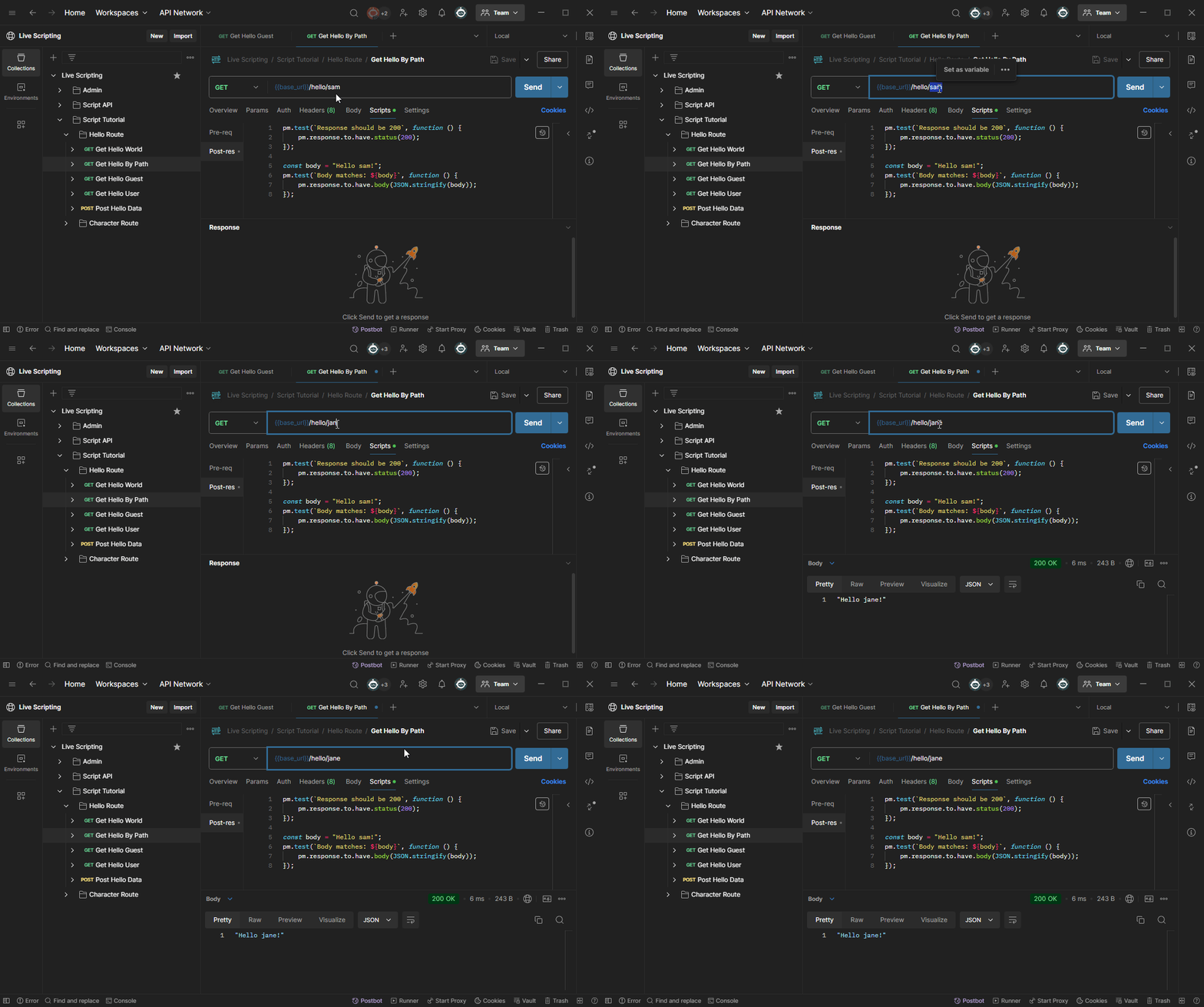
Run the Get Hello By Path postman request with the path parameter
sam. You should see the response: “Hello Sam!”.

Now test the route with a different path parameter, such as
jane, using the Get Hello By Path request. You should see the response: “Hello jane!”.
Step 3: Handling Authenticated Users#
Now, let’s enhance the functionality by identifying users making requests. We’ll create a new function that uses the authenticated user’s name:
Modify
HelloRoute.tsto add a new route handler:
import { RouteDecorators } from "@composer-js/service-core";
const { Get, Param, Route, User } = RouteDecorators;

@Route("/hello")
export default class HelloRoute {
    @Get("/:id")
    getHelloWorld(@Param("id") id: string): string {
        return `Hello ${id}!`;
    }

    @Get()
    getHelloUser(@User user?: any): string {
        if (user && user.name) {
            return `Hello ${user.name}!`;
        } else {
            return "Hello Guest!";
        }
    }
}
Save and publish the script, and wait for the server to restart.
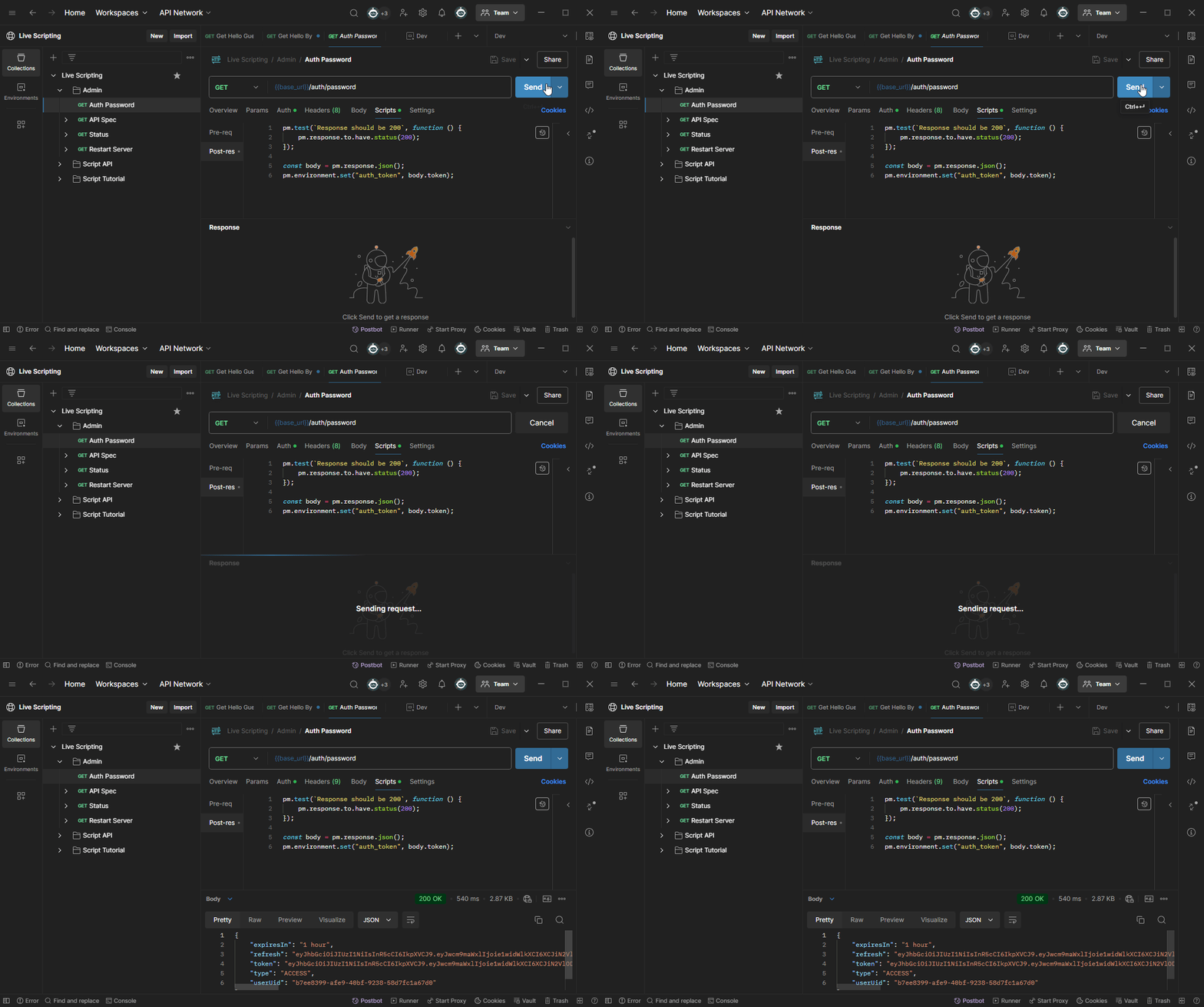
Authenticate using the Auth Password Route in Postman to login using your configured username and password, and cache an
auth_tokento your environment variables.
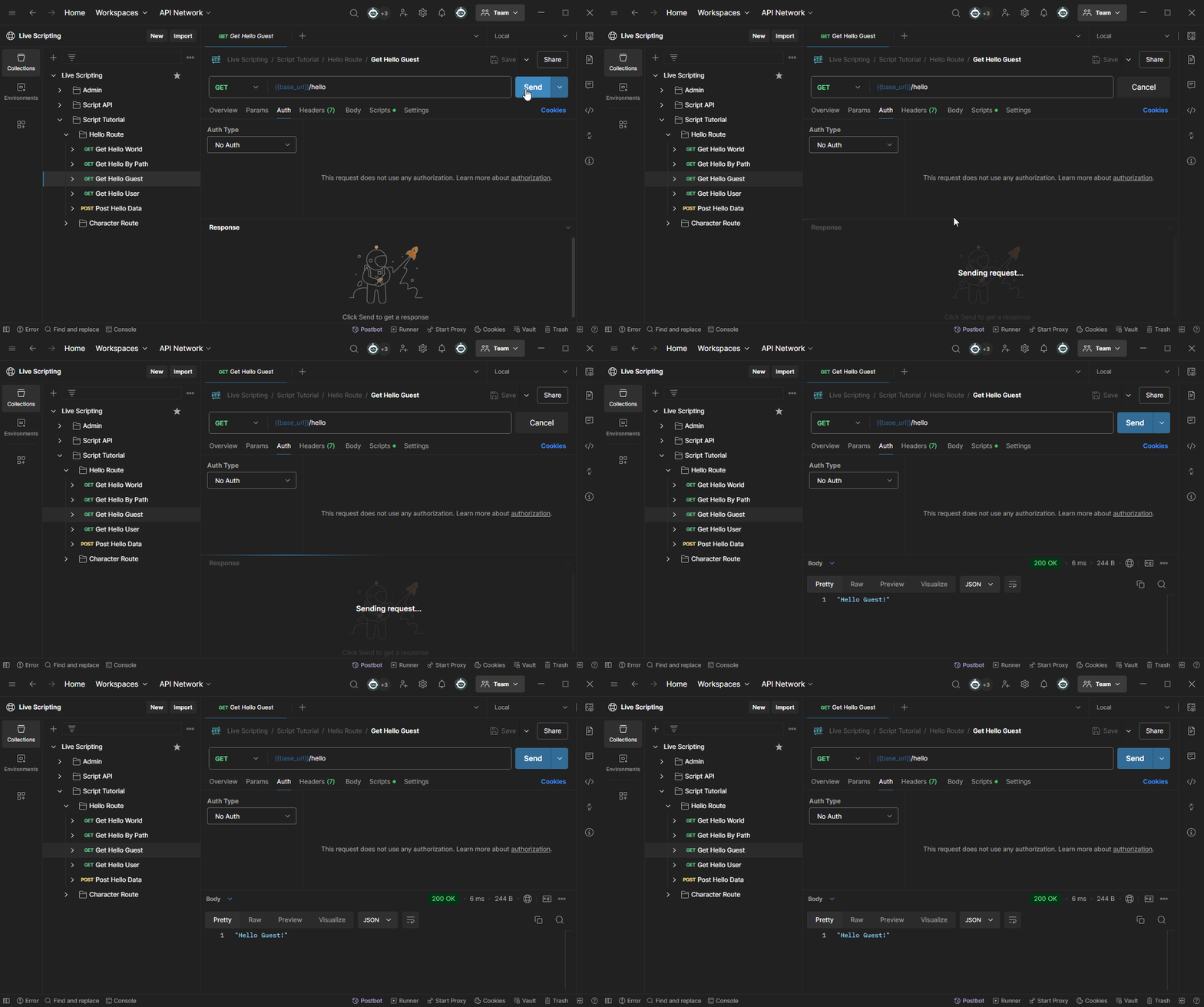
Run the Get Hello Guest Route, which has authorization disabled. You should see the response: “Hello Guest!”.
Now try the Get Hello User Route, which has authorization enabled. You should see the response: “Hello {your username}!”.

Step 4: Handling POST Requests with JSON#
Finally, let’s handle HTTP POST requests with JSON content. We’ll create a new function to process POST requests
and return the submitted data:
Modify
HelloRoute.tsto include the following:
import { RouteDecorators } from "@composer-js/service-core";
const { Get, Param, Post, Route, User } = RouteDecorators;

@Route("/hello")
export default class HelloRoute {
    @Get("/:id")
    getHelloWorld(@Param("id") id: string): string {
        return `Hello ${id}!`;
    }

    @Get()
    getHelloUser(@User user?: any): string {
        if (user && user.name) {
            return `Hello ${user.name}!`;
        } else {
            return "Hello Guest!";
        }
    }

    @Post()
    postMessage(obj: any): any {
        return obj;
    }
}
Save and publish the script, and wait for the server to restart.
Run the Post Hello Data Route request in Postman with the following JSON body, you should see the object returned in the response:
{
    "msg": "Hello data!"
}

Conclusion#
In this part, we explored how to create custom API endpoints by using Route Handlers in the Xsolla Backend Live Scripting System. You now know how to:
Define route handlers and add GET/POST methods.
Use URL parameters and handle authenticated users.
Process JSON content in POST requests.
These tools allow you to easily extend the platform’s functionality, enabling custom API behavior without needing to redeploy services.
In the next part, we’ll focus on creating data models and exposing simple CRUD operations through a custom REST API.