
Create a Quest Definition#
To create a quest definition first a Quest must defined through the Admin Console:
Defining A QuestDefinition#
The first step to defining a QuestDefinition is to login to your local cluster Admin Console.
In the Admin Console on the left navigation menu, select GamePlay -> Quests -> Definitions -> Progress:

On the Definitions page, click the top-right Create button:

This will bring up the Quest Definition Creation window:

The minimum fields required for a QuestDefinition are the following fields:
Field |
Description |
|---|---|
Name |
The Unique name of the quest |
Title |
The textual Title or name of the quest |
Description |
The textual Description of the quest |
Icon |
The Icon to display when representing the quest |
Entity UId |
The universally unique identifier of the entity that gives out the quest |
Product UId |
The UId of the product that this quest is associated with |
Requirements |
List Of QuestRequirement objects to complete this quest |
Rewards |
List of QuestReward objects awarded on quest completion |
Date available |
The date and time that the quest will be first made available |
Date Finished |
The date and time that the quest will no longer be available |
Frequency |
The frequency that the quest can be repeated (i.e. 5min, 1h, 1w) |
Unlock Requirements |
List Of QuestRequirement objects to unlock this quest |
Autostart |
Set to true to have quests automatically start tracking progress, once unlocked; more info below |
Required QuestDefinition fields:
Requirements
Rewards
Date Available
Date Finished
Autostart Feature#
The Autostart Feature starts a Quest, once one is unlocked.
To enable the Autostart feature:
Go to the Admin Console.
Navigate to GamePlay -> Quests -> Definitions -> Progress.
Double-click the current quest to bring up the Quest Definition Edit window.
Double-click Autostart (at the bottom) to enter edit mode.
Click the Toggle button -> Save (bottom-right).
The AutoStart feature is now enabled!
Unlock Requirements#
Unlocking quests is a common feature among games and apps. A Locked Quest is a quest that cannot be started/progressed.
Note
All quests are locked by default.
In many cases, developers want conditions met before a quest can be unlocked. To define the requirements for Xsolla Backend, the Unlock Requirements field is used.
The Unlock Requirements field contains a List of QuestRequirement objects.
Each represents a single requirement to unlock a Quest.
To define a QuestRequirement object, click the Add button above the Unlock Requirements field in the
Quest Definition Creation window:

This will bring up the Quest Requirement Edit window:

Field |
Description |
|---|---|
Type |
A unique string used to denote event type; can be any value (recommended: dot-notation) |
Title |
The textual Title or name of the requirement |
Description |
The textual Description of the requirement |
Icon |
The Icon to display when representing the requirement |
Value |
The amount needed of this requirement to mark as complete (recommended: |
Once filled out, click the Create button (bottom-right):

This will add a new unlock QuestRequirement object to the QuestDefinition -> Repeat as necessary.
Completion Requirements#
Once a quest is Unlocked and Started, its progress can be tracked on the server
To define what progress is required to complete a Quest object is used
The Requirements field contains a List of QuestRequirement objects
Each represents 1 progress requirement to complete a quest
To define a QuestRequirement progress object, click the Add button (above the Requirements field) in
the Quest Definition Creation window:

This will bring up the Quest Requirement Edit window:

Field |
Description |
|---|---|
Type |
A unique string used to denote event type; can be any value (recommended: dot-notation) |
Title |
The textual Title or name of the requirement |
Description |
The textual Description of the requirement |
Icon |
The Icon to display when representing the requirement |
Value |
The amount needed of this requirement to mark as complete (recommended: |
Once filled out, click the Create button (bottom-right):

This will add a new progress QuestRequirement object to the QuestDefinition.
Quest Rewards#
On completion of a quest, the player is often rewarded:
QuestReward objects are used to track entities stored on the Server, rewarding users upon completion of a quest:
Field |
Description |
|---|---|
Type |
The Type or reward granted |
Quantity |
The amount of the reward granted |
Entity Uid |
Uid of the entity rewarded |
The Type Field allows for 3 types of values:
Type |
Description |
|---|---|
ITEM |
Granted an item |
PROGRESS |
Granted Quest Progress |
QUEST |
Granted a new quest |
Note
You may want to save the Quest Definition at this point:
Scroll to the bottom of the Quest Definition Creation window -> Click the ‘Create’ button
To Create an ITEM reward, a Resource object must be created.
In the Admin Console, navigate to Economy -> Resources:
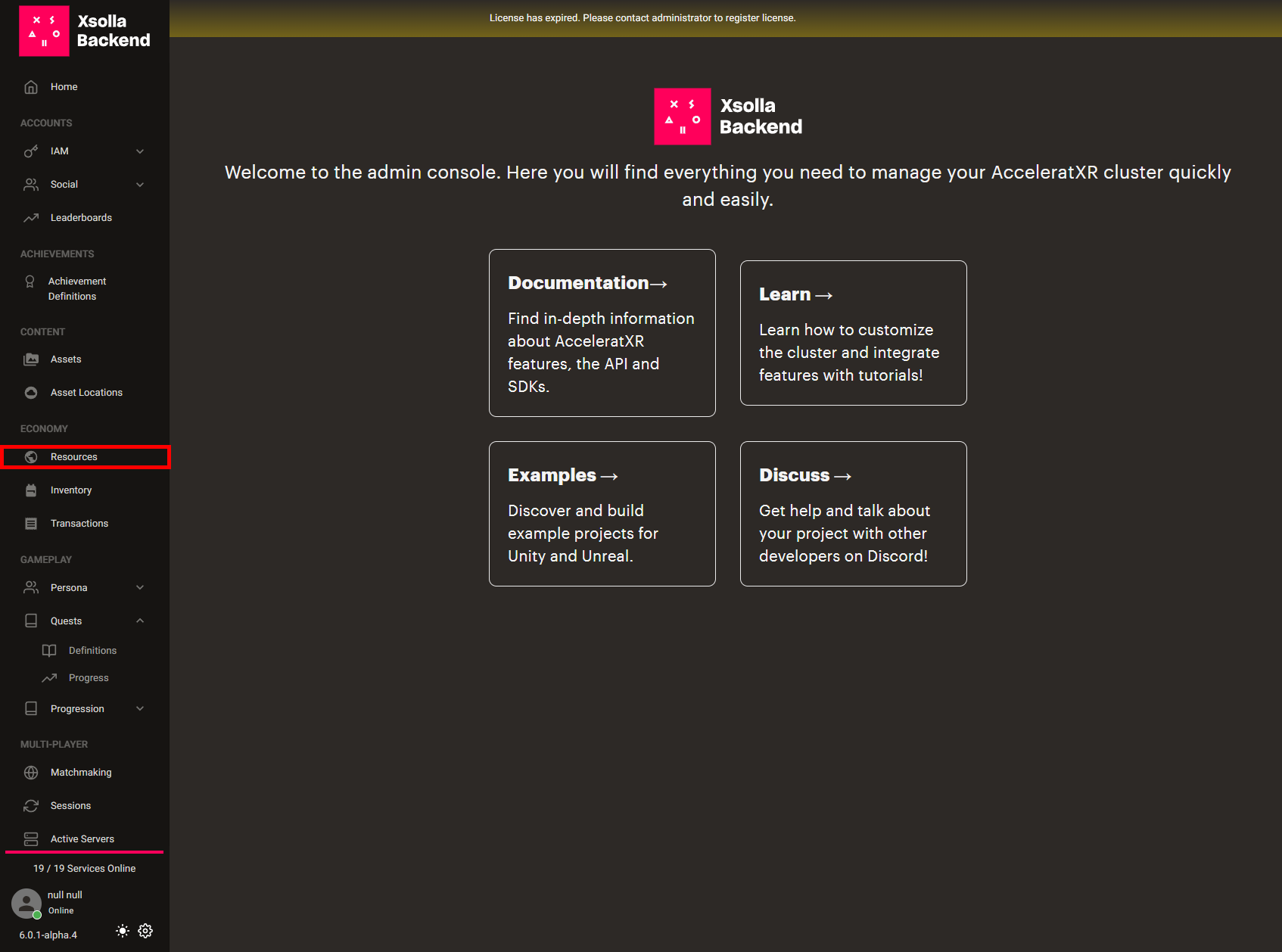
On the Resources page, click the Create button (top-right):

This will bring up the Resource Creation window:

Field |
Description |
|---|---|
Name |
The Unique name of the resource |
Cost |
List of resources representing cost |
Data |
An arbitrary map of additional data about the resource |
Defaults |
The defaults to use when creating new instances of the resource |
Description |
Description of the resource |
Parent |
THe UUID of the parent resource to inherit stats, description, etc |
Stackable |
Indicates if the resource can be copied and stacked, or if each instance is considered unique |
Stats |
List of stats associated with the resource |
Title |
The name to display to the user |
To make a stable Resource, only the Name field is required.
Note
Copy the UID of the resource
Once filled out, click the Create button to add the Resource to be used in QuestReward creation.
Note
Return to the previously-created QuestDefinition.
Scroll down to the Rewards section -> double click on the Rewards section to enter Edit Mode.
Click the Add button (above the Rewards section):

This will bring up the Edit Rewards window:

Set the type to Item.
Note
Paste the copied UID (from earlier) of the resources awarded into the Entity Uid field
Click The Create button:
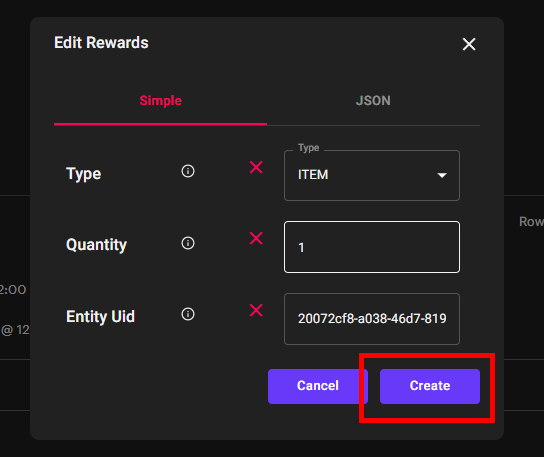
Once you define your QuestDefinition, scroll down to the bottom of the Quest Definition Creation window and click the Create button.
This will add your QuestDefinition object to the server. To use the new quest definition for you product, the
Quest System API must be used.