Unity Chess Game - SDK Setup Tutorial#
The XBE Unity package houses the XBE Core SDK for the Unity plugin; a simple wrapper around the XBE C# SDK that provides a Unity-friendly interface for accessing the XBE API.
The package also contains tests that can be run from within Unity to verify SDK functionality.
Content#
Setup#
To run chess:
The XBE_Unity package should be added to the project.
The CoreSDK object should be setup.
XBE Unity Package Installation#
The XBE Unity package is a wrapper for the XBE C# SDK. This is required to use XBE functionality.
In the Unity Menu Bar, select Windows->Package Manager:

Once the Package Manager Window is open Select the + icon in the top left corner:
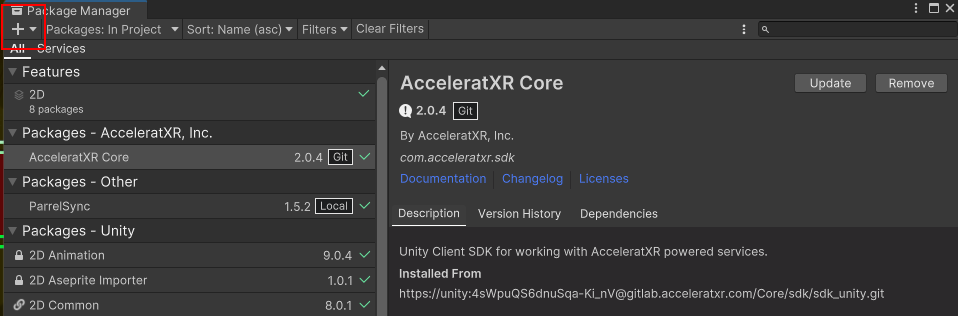
Select Add package from git URL:

In the URL prompt enter the git repo url for the XBE_Unity package:
https://unity:4sWpuQS6dnuSqa-Ki_nV@source.goxbe.io/Core/sdk/sdk_unity.git
Then Click Add:

This will install the XBE_Unity package into the Chess Project.
Core SDK Object Setup#
The CoreSDK Object is used to configure your XBE installation. In Chess, it is located in Assets/Data/Axr
To create a CoreSDK Object, right click in the Project Pane to bring up the Context Menu. Select Create -> AcceleratXR -> CoreSDK:


This will create a CoreSDK ScriptableObject. To point at your Cluster, input your Cluster url in the Base URL field.
In Chess, to utilize the CoreSDK object the Main Menu Object, has to have its Axr Core SDK populated with this object:
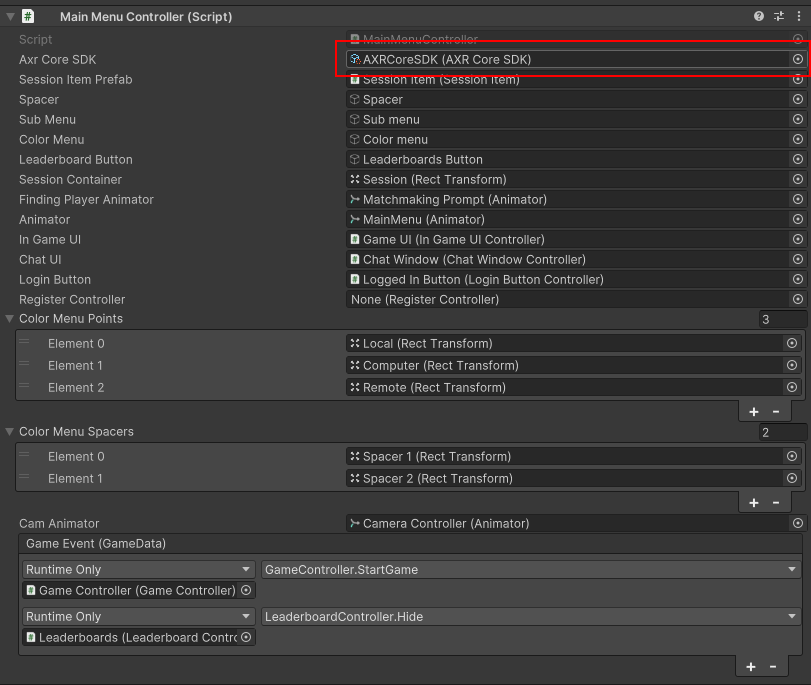
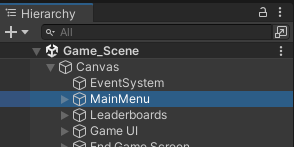
The Main Menu Object can be found in the hierarchy via Canvas -> MainMenu: