
Unity Chess Full Game Sample#
The Xsolla UnityChessGame full game sample repo contains a 2-player turn-based game, utilizing multiple XBE feature sets.
Components#
Getting Started#
Recommended Setup#
While we’ll guide you through most, here’s a high-level note of what we’ll be using:
XBE Unity SDK (Package) Installation#
While you may access the Xsolla Backend API directly, the wrapper provides all the bootstrapping for you.
See the guided Unity SDK installation tutorial, complete with screenshots.
ParrelSync Installation#
While not required, downloading ParrelSync will greatly help rapid test iterations: it’s a tool used to test multiplayer functionality locally by creating and opening a clone of your Unity Project.
Once downloaded, it can be installed through the Package Manager (top menu Windows -> Package Manager) in a similar way you installed the SDK:

Select the [+] icon in the top left corner:
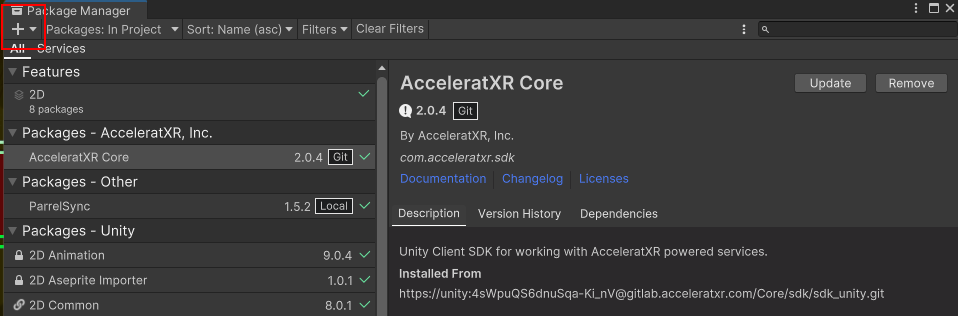
Select Add package from disk:

Using ParrelSync#
Once installed, a new ParrelSync menu option will appear.
From the menu, select ParrelSync -> Clones Manager -> Create new clone:

This will begin to clone a copy of your project. Once cloned, it will appear in the Clones Manager pane.
Select Open in New Editor:

This will open a separate Unity Editor to test multiplayer functionality.
Run Chess#
A unique id is required for local clones, represented by a GUID.
Generate a GUID and enter it into the Device ID field of the Main Menu object of the clone.
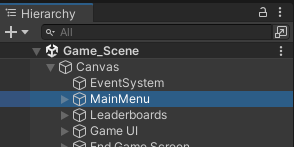
The Main Menu Object can be found in the Inspector Pane: Canvas -> MainMenu:
Press the Play Button on both the clone and original editors -> then in-game:
Select Play -> Online -> New Game
This will initiate matchmaking. Once a match has been found, one of the players will be prompted with a color selection. Once player color is selected, the match will begin.